Add Provider
Open the Add Panel
Click the + button in the top-right corner of the main interface to open the Add Provider panel.
The panel has two tabs:
- App-specific Provider: Only for the currently selected app (Claude Code / Claude Desktop / Codex / Gemini / OpenCode / OpenClaw / Hermes)
- Universal Provider: Shared configuration across apps
Add Using Presets
Presets are pre-configured provider templates that only require an API Key to use.
Steps
- Select a provider from the "Preset" dropdown
- Name and endpoint are auto-filled
- Enter your API Key
- (Optional) Add notes
- Click "Add"
Common Presets
Claude Presets
| Preset Name | Description |
|---|---|
| Claude Official | Log in with an Anthropic official account |
| DeepSeek | DeepSeek model |
| Zhipu GLM | Zhipu AI GLM model |
| Zhipu GLM en | Zhipu AI (English version) |
| Bailian | Alibaba Cloud Bailian (Qwen) |
| Kimi | Moonshot Kimi model |
| Kimi For Coding | Kimi coding-specific model |
| StepFun | StepFun model |
| ModelScope | ModelScope community |
| KAT-Coder | KAT-Coder model |
| Longcat | Longcat AI |
| MiniMax | MiniMax model |
| MiniMax en | MiniMax (English version) |
| DouBaoSeed | DouBao Seed model |
| BaiLing | BaiLing AI |
| AiHubMix | AiHubMix aggregation service |
| SiliconFlow | SiliconFlow |
| SiliconFlow en | SiliconFlow (English version) |
| DMXAPI | DMXAPI proxy service |
| PackyCode | PackyCode proxy service |
| Cubence | Cubence service |
| AIGoCode | AIGoCode service |
| RightCode | RightCode service |
| AICodeMirror | AICodeMirror service |
| OpenRouter | Aggregation routing service |
| Nvidia | Nvidia AI service |
| Xiaomi MiMo | Xiaomi MiMo model |
The preset list may be updated with new versions. Refer to the actual list shown in the app.
Claude Desktop Presets
The Claude Desktop panel includes provider presets translated from the Claude Code preset catalog. When adding one, choose between:
- Direct mode: the provider exposes a native Anthropic Messages API that Claude Desktop can reach directly
- Model mapping mode: non-Claude models are mapped through the Olenro local gateway into Sonnet / Opus / Haiku routes
- Claude Desktop Official: restores Claude Desktop's official sign-in mode
See 2.6 Claude Desktop for the full workflow.
Codex Presets
Codex presets fall into two groups by upstream protocol.
Native Responses protocol (direct connection or standard proxy forwarding):
| Preset Name | Description |
|---|---|
| OpenAI Official | Log in with an OpenAI official account |
| Azure OpenAI | Azure OpenAI service |
| AiHubMix | AiHubMix aggregation service |
| DMXAPI | DMXAPI proxy service |
| PackyCode | PackyCode proxy service |
| OpenRouter | Aggregation routing service |
| Cubence / AIGoCode / RightCode / AICodeMirror, etc. | Various proxy services |
Chat Completions protocol (requires the Needs Local Routing toggle; converted automatically by the proxy):
| Preset Name | Description |
|---|---|
| DeepSeek | DeepSeek models |
| Zhipu GLM / GLM en | Zhipu AI GLM models |
| Kimi | Moonshot Kimi models |
| MiniMax / MiniMax en | MiniMax models |
| StepFun / StepFun en | StepFun Step models |
| Baidu Qianfan Coding Plan | Baidu Qianfan coding plan |
| Bailian | Alibaba Cloud Bailian (Qwen) |
| ModelScope | ModelScope community |
| Longcat | Longcat AI |
| BaiLing | BaiLing AI |
| Xiaomi MiMo / MiMo Token Plan | Xiaomi MiMo models |
| Volcengine Agentplan | Volcengine Agent Plan |
| BytePlus | BytePlus service |
| DouBaoSeed | DouBao Seed models |
| SiliconFlow / SiliconFlow en | SiliconFlow |
| Novita AI | Novita AI service |
| Nvidia | Nvidia AI service |
💡 When you pick a Chat Completions preset, the Needs Local Routing toggle and the model mapping table are configured automatically; see the "Codex Local Routing and Model Mapping" section below. The preset list is updated continuously — refer to the in-app list for the authoritative version.
Gemini Presets
| Preset Name | Description |
|---|---|
| Google Official | Log in with Google OAuth |
| PackyCode | PackyCode proxy service |
| Cubence | Cubence service |
| AIGoCode | AIGoCode service |
| AICodeMirror | AICodeMirror service |
| OpenRouter | Aggregation routing service |
| Custom | Manually configure all parameters |
OpenCode Presets
| Preset Name | Description |
|---|---|
| DeepSeek | DeepSeek model |
| Zhipu GLM | Zhipu AI GLM model |
| Zhipu GLM en | Zhipu AI (English version) |
| Bailian | Alibaba Cloud Bailian |
| Kimi k2.5 | Moonshot Kimi-k2.5 model |
| Kimi For Coding | Kimi coding-specific model |
| StepFun | StepFun model |
| ModelScope | ModelScope community |
| KAT-Coder | KAT-Coder model |
| Longcat | Longcat AI |
| MiniMax | MiniMax model |
| MiniMax en | MiniMax (English version) |
| DouBaoSeed | DouBao Seed model |
| BaiLing | BaiLing AI |
| Xiaomi MiMo | Xiaomi MiMo model |
| AiHubMix | AiHubMix aggregation service |
| DMXAPI | DMXAPI proxy service |
| OpenRouter | Aggregation routing service |
| Nvidia | Nvidia AI service |
| PackyCode | PackyCode proxy service |
| Cubence | Cubence service |
| AIGoCode | AIGoCode service |
| RightCode | RightCode service |
| AICodeMirror | AICodeMirror service |
| OpenAI Compatible | OpenAI-compatible interface |
| Oh My OpenCode | Oh My OpenCode service |
The preset list is continuously updated. Refer to the actual list shown in the app.
OpenClaw Presets
| Preset Name | Description |
|---|---|
| DeepSeek | DeepSeek model |
| Zhipu GLM | Zhipu AI GLM model |
| Zhipu GLM en | Zhipu AI (English version) |
| Qwen Coder | Qwen coding model |
| Kimi k2.5 | Moonshot Kimi-k2.5 model |
| Kimi For Coding | Kimi coding-specific model |
| StepFun | StepFun model |
| MiniMax | MiniMax model |
| MiniMax en | MiniMax (English version) |
| KAT-Coder | KAT-Coder model |
| Longcat | Longcat AI |
| DouBaoSeed | DouBao Seed model |
| BaiLing | BaiLing AI |
| Xiaomi MiMo | Xiaomi MiMo model |
| AiHubMix | AiHubMix aggregation service |
| DMXAPI | DMXAPI proxy service |
| OpenRouter | Aggregation routing service |
| ModelScope | ModelScope community |
| SiliconFlow | SiliconFlow |
| SiliconFlow en | SiliconFlow (English version) |
| Nvidia | Nvidia AI service |
| PackyCode | PackyCode proxy service |
| Cubence | Cubence service |
| AIGoCode | AIGoCode service |
| RightCode | RightCode service |
| AICodeMirror | AICodeMirror service |
| AICoding | AICoding service |
| CrazyRouter | CrazyRouter service |
| SSSAiCode | SSSAiCode service |
| AWS Bedrock | AWS Bedrock service |
| OpenAI Compatible | OpenAI-compatible interface |
Auto-Fetch Models
When adding or editing a provider, you can automatically discover available models from the provider's endpoint — eliminating the tedious copy-and-paste of model IDs.
- Ensure the API Key and Endpoint URL are filled in
- Click the Fetch Models button (download icon) next to the model input field
- Olenro uses the configured API Key to call the OpenAI-compatible
/v1/modelsendpoint - Select a model from the dropdown, grouped by category
This feature is available in model-aware provider forms for Claude Code / Claude Desktop / Codex / Gemini / OpenCode / OpenClaw / Hermes, and works for providers that support the /v1/models endpoint. Codex OAuth providers fetch live model lists from the ChatGPT Codex backend on demand.
Common errors:
- Authentication failed (401/403): Check your API Key
- Endpoint not supported (404/405): The provider does not expose a
/v1/modelsendpoint; fall back to manual model ID entry - Parse failure: The response does not match the OpenAI-compatible format
- Timeout: The endpoint is slow to respond; try again later or check your network
Custom Configuration
After selecting the "Custom" preset, you need to manually edit the JSON configuration.
Claude Configuration Format
{
  "env": {
    "ANTHROPIC_API_KEY": "your-api-key",
    "ANTHROPIC_BASE_URL": "https://api.example.com"
  }
}| Field | Required | Description |
|---|---|---|
ANTHROPIC_API_KEY | Yes | API key |
ANTHROPIC_BASE_URL | No | Custom endpoint URL |
ANTHROPIC_AUTH_TOKEN | No | Alternative authentication method to API_KEY |
Codex Configuration Format
Codex uses two configuration files:
1. auth.json (~/.codex/auth.json) - Stores API key:
{
  "OPENAI_API_KEY": "your-api-key"
}
2. config.toml (~/.codex/config.toml) - Stores model and endpoint configuration:
# Basic configuration
model_provider = "custom"
model = "gpt-5.2"
model_reasoning_effort = "high"
disable_response_storage = true

# Custom provider configuration
[model_providers.custom]
name = "custom"
base_url = "https://api.example.com/v1"
wire_api = "responses"
requires_openai_auth = true
auth.json field descriptions:
| Field | Required | Description |
|---|---|---|
OPENAI_API_KEY | Yes | API key |
config.toml field descriptions:
| Field | Required | Description |
|---|---|---|
model_provider | Yes | Model provider name (must match [model_providers.xxx]) |
model | Yes | Model to use (e.g., gpt-5.2, gpt-4o) |
model_reasoning_effort | No | Reasoning effort: low / medium / high |
disable_response_storage | No | Whether to disable response storage |
goals | No | Enables Codex /goal mode when set under [features]; the provider editor can toggle this field for providers that need it |
base_url | Yes | API endpoint URL |
wire_api | No | API protocol type (usually responses) |
requires_openai_auth | No | Whether to use OpenAI authentication |
If Codex recognizes /goal but cannot set a goal after switching to an API-key or custom endpoint provider, enable the provider editor's Goal mode switch. Olenro writes goals = true under [features] for that provider's ~/.codex/config.toml; restart Codex afterward. If Goal mode asks for approval more often than expected, refresh the Codex settings page and check that approval_policy and sandbox_mode still match your intended permission level.
Gemini Configuration Format
{
  "env": {
    "GEMINI_API_KEY": "your-api-key",
    "GOOGLE_GEMINI_BASE_URL": "https://api.example.com"
  }
}| Field | Required | Description |
|---|---|---|
GEMINI_API_KEY | Yes | API key |
GOOGLE_GEMINI_BASE_URL | No | Custom endpoint URL |
GEMINI_MODEL | No | Specify model |
Authentication type is automatically detected by Olenro (PackyCode API proxy / Google OAuth / generic API Key), no manual configuration needed.
Universal Provider
Universal providers can share configurations across Claude Code / Codex / Gemini, suitable for proxy services that support multiple API formats.
Create a Universal Provider
- Switch to the "Universal Provider" tab
- Click "Add Universal Provider"
- Fill in the common configuration:
- Name
- API Key
- Endpoint URL
- Check the apps to sync to (Claude Code / Codex / Gemini)
- Save
Sync Mechanism
Universal providers automatically sync to the selected apps:
- After modifying a universal provider, all linked app configurations are updated
- After deleting a universal provider, linked app configurations are also deleted
Save and Sync
When editing a universal provider, you can choose:
| Action | Description |
|---|---|
| Save | Save configuration only, without immediate sync |
| Save and Sync | Save configuration and immediately sync to all enabled apps |
Manual Sync
If you need to manually trigger a sync:
- Click the "Sync" button on the universal provider card
- Confirm the sync operation
- Configuration will overwrite the linked provider in each app
Import Providers
Olenro supports two ways to import provider configurations:
Option 1: Deep Link Import
One-click import via olenro:// protocol links:
- Click or visit the deep link
- Olenro opens automatically and shows the import confirmation
- Preview the configuration information
- Click "Confirm Import"
Getting deep links:
- Obtain from shared links by others
- Create using the online generator tool
Option 2: Database Backup Import
Batch import from SQL backup files:
- Open "Settings > Advanced > Data Management"
- Click "Select File"
- Select a previously exported
.sqlbackup file - Click "Import"
- Confirm to overwrite existing configuration
Imported contents:
- All provider configurations
- MCP server configurations
- Prompt presets
- Usage logs
Note: Importing will overwrite the existing database. It is recommended to export your current configuration as a backup first. The exported file name format is
olenro-export-{timestamp}.sql.
Codex OAuth Reverse Proxy (Claude Provider)
Starting from v3.13.0, Olenro adds a Codex OAuth reverse proxy path that lets you reuse your ChatGPT account's Codex service inside Claude Code.
Location hint: This feature appears as a new Claude provider card type, not as a Codex-side preset. Once added, it sits alongside regular API-Key providers in the Claude provider list.
Prerequisites
- A ChatGPT account you can log in to
- Network access to
auth.openai.comandchatgpt.com - Before using, please read the ⚠️ Risk Notice at the end of this section
Two Entry Points
You can start from either entry point:
Entry A: From the Add Provider panel (recommended for new users)
- Switch to the Claude app
- Click the + button in the top-right to open the Add Provider panel
- Under the third-party category, select the Codex (ChatGPT Plus/Pro) preset (use the name as shown in the UI)
- If no ChatGPT account is logged in yet, the panel automatically guides you into the login flow (see "Login Flow" below)
- After login succeeds, the provider form shows the logged-in account — click Save to finish
Entry B: From the OAuth Auth Center (better for multi-account management)
- Open Settings → OAuth Auth Center (tab marked with a Beta label)
- In the ChatGPT (Codex OAuth) section, click Log in with ChatGPT
- Complete the login flow (see below)
- Once logged in, return to the Claude app → Add Provider → select the same Codex (ChatGPT Plus/Pro) preset
- In the form's Select Account dropdown, choose the account you just logged in and save
Login Flow (Device Code)
No matter which entry point you use, the login flow is the same:
- Get the verification code: Olenro invokes OpenAI's Device Code flow and displays:
- An 8-character verification code (e.g.,
ABCD-1234) - A Copy button next to the code
- The authorization URL
https://auth.openai.com/codex/device - An "Waiting for authorization..." animation
- An 8-character verification code (e.g.,
- Browser authorization: Click the link (or manually visit the URL) and in the browser:
- Log in to your ChatGPT account
- Enter the verification code you copied
- Confirm authorization
- Automatic polling: Olenro keeps polling the OpenAI server in the background and closes the waiting UI once authorization succeeds
- Account appears in the list: The logged-in ChatGPT account (login email) shows up in OAuth Auth Center → Logged-in Accounts
⏱️ Verification codes are valid for about 15 minutes. If it expires, the UI shows "Device Code has expired" — click Retry to get a new one.
Enable and Use
After adding and saving a Codex OAuth provider:
- Find it in the Claude provider list
- Click the Enable button on the card — same as any regular provider
- Claude Code CLI then uses the reverse proxy to access the Codex service
- The provider also appears in the tray menu's Claude submenu for quick switching
Under the hood: Olenro routes requests to
https://chatgpt.com/backend-api/codex, with the base URL forcibly rewritten — you do not need to manually fill in the endpoint. The API format is fixed toopenai_responses.
Default Models
The Codex OAuth preset's default model mapping:
| Role | Default Model |
|---|---|
| Main model | gpt-5.4 |
| Sonnet role | gpt-5.4 |
| Opus role | gpt-5.4 |
| Haiku role | gpt-5.4-mini |
Starting from v3.15.0, Codex OAuth model selection no longer relies only on a hardcoded list. When the model selector opens, Olenro fetches available models from the ChatGPT Codex backend on demand; the default mapping can still be overridden.
You can override the ANTHROPIC_MODEL and related environment variables in the provider's JSON editor to customize.
Multi-Account Management (OAuth Auth Center)
The OAuth Auth Center supports managing multiple ChatGPT accounts at the same time:
| Action | Description |
|---|---|
| Add another account | Click Add Another Account to repeat the login flow |
| Set as default | Click Set as Default on an account row — new providers use it |
| Choose for a provider | In the provider form, use the Select Account dropdown |
| Remove account | Click the red × next to an account (the token is cleared) |
| Log out all accounts | The Log Out All Accounts button at the bottom clears all |
Use case: If you share a dev machine with teammates, create one provider per member's ChatGPT account and switch between them via the tray menu.
Token Auto-Refresh
- Tokens are automatically refreshed 60 seconds before expiry, fully in the background — no manual action required
- Refresh tokens are stored in the local data directory and are never uploaded anywhere
- Token export is not supported (to prevent leaks)
Quota Display
After login and enabling the provider, the bottom of the provider card automatically shows the account quota:
| Display Element | Example | Color Rules |
|---|---|---|
| Usage percentage | 45% | < 70% green, 70–89% orange, ≥ 90% red |
| Reset countdown | 7d12h until reset | ChatGPT account's sliding window or daily limit |
| Refresh button | Circular arrow | Manually re-query quota |
⚠️ Session Expired: If the token fails to refresh, the card displays a yellow "Session Expired" warning. Go to the OAuth Auth Center, remove the account, and log in again.
Common Failures
| Scenario | Symptom | Resolution |
|---|---|---|
| Verification code timeout | "Device Code has expired" shown | Click Retry to get a new code |
| Authorization denied | "User denied authorization" | Retry and click "Authorize" in the browser |
| Network error | Specific error details shown | Check network, confirm access to OpenAI domains |
| Not logged in before adding | "Please log in to ChatGPT first" | Complete login in OAuth Auth Center first |
| Token refresh failed | "Session Expired" in quota box | Remove the account and log in again |
| Quota query failed | "Query failed" in quota box | Click the Refresh button to retry |
⚠️ Risk Notice (Important)
The Codex OAuth reverse proxy accesses your ChatGPT account's Codex service through a reverse-engineered OAuth flow. Before enabling, please make sure you understand the following risks:
- Terms of Service violations: May violate OpenAI's Terms of Service, which prohibit unauthorized automated access, service replication, and bypassing established access paths
- Account risk: OpenAI may flag unusual usage patterns as suspicious automation and impose temporary or permanent restrictions on your ChatGPT account
- No guarantee of long-term availability: OpenAI may update its authentication and detection mechanisms at any time, and currently available methods may be blocked in the future
By enabling this feature, you assume all risks. Olenro is not responsible for any account restrictions, warnings, or service suspensions resulting from its use.
📖 See the full disclaimer and background in the v3.13.0 Release Notes.
Advanced Options
API Format (Claude Only)
When adding a Claude provider that uses a third-party API, you may need to select the correct API Format in the Advanced Options section:
| Format | Description | When to Use |
|---|---|---|
| Anthropic Messages | Native Anthropic API format (default) | Direct Anthropic API or compatible proxies |
| OpenAI Chat Completions | OpenAI Chat API format, auto-converted by proxy | Provider only supports OpenAI Chat format |
| OpenAI Responses API | OpenAI Responses API format, auto-converted by proxy | Provider only supports OpenAI Responses format |
Note: API format conversion is handled by the proxy service. When using non-Anthropic formats, the proxy must be running with takeover enabled for correct request/response conversion. See 4.1 Proxy Service for details.
The Advanced Options section auto-expands when a non-default API format is configured.
Full URL Endpoint Mode
Added in v3.13.0. By default, Olenro treats the configured base_url as a prefix and appends fixed paths like /v1/chat/completions. For some vendors (such as third-party services with non-standard URL layouts), this path concatenation causes requests to fail.
How to enable:
- Edit the provider and expand Advanced Options
- Check the Full URL Mode checkbox
- Fill in the complete upstream endpoint (not a prefix) as
base_url
Example comparison:
| Mode | base_url value | Actual request target |
|---|---|---|
| Default (prefix concat) | https://api.example.com | https://api.example.com/v1/chat/completions |
| Full URL Mode | https://api.example.com/custom/path/messages | https://api.example.com/custom/path/messages |
When to use:
- The vendor requires a non-standard path (not
/v1/chat/completions) - The vendor has a multi-level path structure
- Vendor-specific API gateway paths
Note: Both proxy forwarding and Stream Check respect the Full URL Mode setting, so no extra adjustments are needed after enabling. Disabling this option restores default path concatenation.
Claude Common Config Toggles
When editing Claude providers, a set of quick toggles is available above the JSON editor:
| Toggle | Effect | Config Change |
|---|---|---|
| Hide Attribution | Clears commit/PR attribution metadata | Sets attribution: {commit: "", pr: ""} |
| Enable Teammates | Enables the agent teams feature | Sets env.CLAUDE_CODE_EXPERIMENTAL_AGENT_TEAMS = "1" |
| Enable Tool Search | Enables tool search functionality | Sets env.ENABLE_TOOL_SEARCH = "true" |
| Max Effort | Sets effort level to max | Sets env.CLAUDE_CODE_EFFORT_LEVEL = "max" |
| Disable Auto Upgrade | Prevents Claude Code auto-updates | Sets env.DISABLE_AUTOUPDATER = "1" |
When a toggle is unchecked, its corresponding config entry is removed entirely. Changes are reflected in the JSON editor in real-time.
Additionally, the Write Common Config checkbox enables merging a global config snippet into the provider. Click Edit Common Config to customize the shared snippet.
Codex Local Routing and Model Mapping
Some third-party providers only support the OpenAI Chat Completions protocol or use non-GPT model names (such as DeepSeek, Kimi, or MiniMax). Codex natively understands only the OpenAI Responses API and GPT-series models, so these providers need Olenro to convert the protocol and models locally.
Needs Local Routing
When editing a Codex provider, a Needs Local Routing toggle is available:
- When to enable: the provider uses the Chat Completions protocol, or its model names are not Codex's default GPT series
- When enabled: Olenro's local proxy converts the Responses requests Codex sends into upstream Chat Completions, then converts the response (including streaming SSE, reasoning content, and tool calls) back into Responses format
- Prerequisite: local routing must be running with Codex takeover enabled for conversion to take effect; keep local routing running while in use
💡 When you pick a Chat-format preset such as DeepSeek or Kimi, this toggle is enabled by default — no manual setup needed.
Model Mapping
Once Needs Local Routing is enabled, a Model Mapping table appears below it to declare the models available for this provider:
| Field | Description |
|---|---|
| Model ID | The real upstream model name, e.g. deepseek-v4-flash |
| Display Name | (Optional) The name shown in the /model command |
| Context Window | (Optional) The model's context length |
- The mapping table generates Codex's
model_catalog_jsonso the/modelcommand lists these third-party model names - Entries are saved exactly as listed and are the single source of truth for the model list
- Codex must be restarted to refresh the model list after changes (
model_catalog_jsonis loaded at Codex startup)
Reasoning Auto-Detection
With Local Routing on, Olenro auto-detects each provider's reasoning interface and converts Codex's outgoing reasoning request into a parameter the upstream understands — no manual setup required. Detection is based on the provider's name, base URL, and model:
- Aggregator / hosting platforms first: OpenRouter, SiliconFlow, etc. are handled by platform rules (the same model can expose a completely different reasoning interface on different platforms)
- Otherwise by model brand: DeepSeek, Kimi / Moonshot, Zhipu GLM, Qwen, MiniMax, Xiaomi MiMo, StepFun each have their own rules
Providers fall into two reasoning-capability tiers:
| Capability | Meaning | Example providers |
|---|---|---|
| Effort levels supported | Reasoning strength is adjustable (low / medium / high, etc.) | DeepSeek, OpenRouter, StepFun (step-3.5-flash-2603 only) |
| On/off switch only | Reasoning can only be turned on or off; levels have no effect | Kimi, Zhipu GLM, Qwen, MiniMax, Xiaomi MiMo, SiliconFlow |
⚠️ Effort levels do nothing for some providers: if a provider only supports an on/off switch, changing the reasoning effort in Codex (
model_reasoning_effortlow / medium / high) has no effect — Olenro does not forward the level to these upstreams (their API rejects the parameter, and sending it anyway may break the request). Their reasoning is on by default and works via on/off rather than tiering. Only providers with real effort levels (e.g. DeepSeek, OpenRouter) actually respond to a level change.
💡 Detection is keyword matching on name / base URL / model, not a real capability probe. Official domains (e.g.
api.deepseek.com,api.moonshot.cn) are always recognized; a relay that rewrites the domain and model name may not be detected, in which case no reasoning parameter is injected.
Codex 1M Context Window
When adding a Codex provider, an Enable 1M Context Window toggle is available:
- When enabled: Sets
model_context_window = 1000000and auto-fillsmodel_auto_compact_token_limit = 900000in config.toml - When disabled: Removes both fields
The auto-compact limit can be customized in the text field that appears when the toggle is on. Starting from v3.15.0, this toggle only appears when adding a new Codex provider; when editing an existing provider, adjust the fields directly in advanced configuration if needed.
Custom Icon
Click the icon area to the left of the name to:
- Select a preset icon
- Customize icon color
Website Link
Enter the provider's website or console URL for quick access:
- Click the link icon on the provider card to open directly
- Useful for checking balance, obtaining API keys, etc.
Notes
Add notes such as:
- Account purpose (personal/work)
- Plan information
- Expiration date
Notes are displayed on the provider card and are searchable.
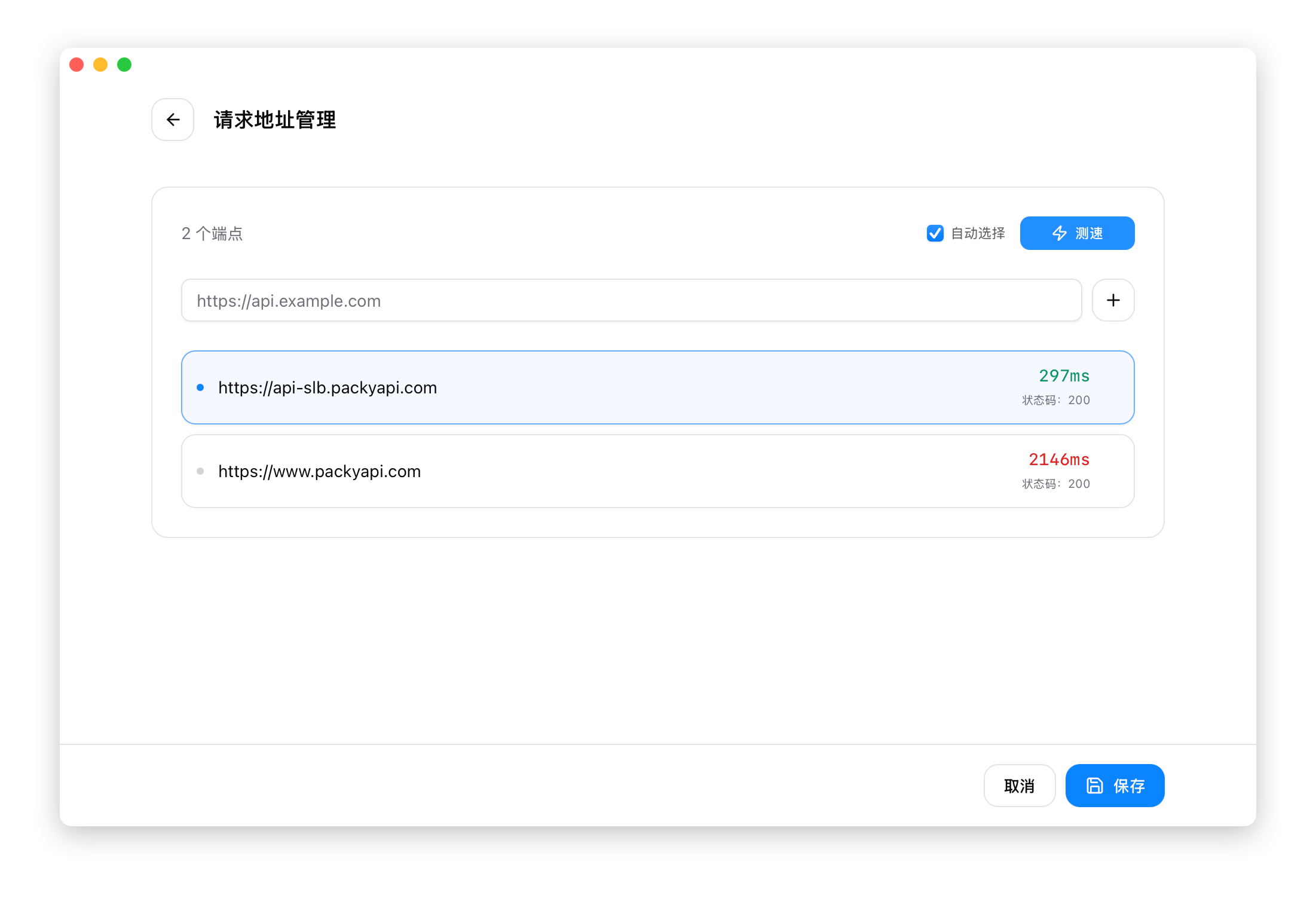
Endpoint Speed Test
After adding a provider, you can speed-test API endpoints:
- Click the "Speed Test" button on the provider card
- Add multiple endpoint URLs in the speed test panel
- Click "Test" to run the test
- Select the endpoint with the lowest latency
Test results:
- Green: Latency < 500ms (Excellent)
- Yellow: Latency 500-1000ms (Fair)
- Red: Latency > 1000ms (Slow)