Providers
Sort & Duplicate
Diese Seite ist noch nicht in deiner Sprache verfügbar — es wird die englische Version angezeigt.
Drag to Reorder
Adjust the display order of providers by dragging.
Steps
- Move the mouse to the ≡ drag handle on the left side of the provider card
- Hold the left mouse button
- Drag up or down to the target position
- Release the mouse to complete reordering
Reorder Uses
- Prioritize frequently used: Place frequently used providers at the top of the list
- Failover order: Sorting affects the default order of the failover queue
Duplicate Provider
Quickly create a copy of a provider, useful for:
- Creating variations based on existing configurations
- Backing up current configurations
- Creating test configurations
Starting from v3.15.0, universal providers also have a duplicate action, so you can create a copy first and then adjust enabled apps and models.
Steps
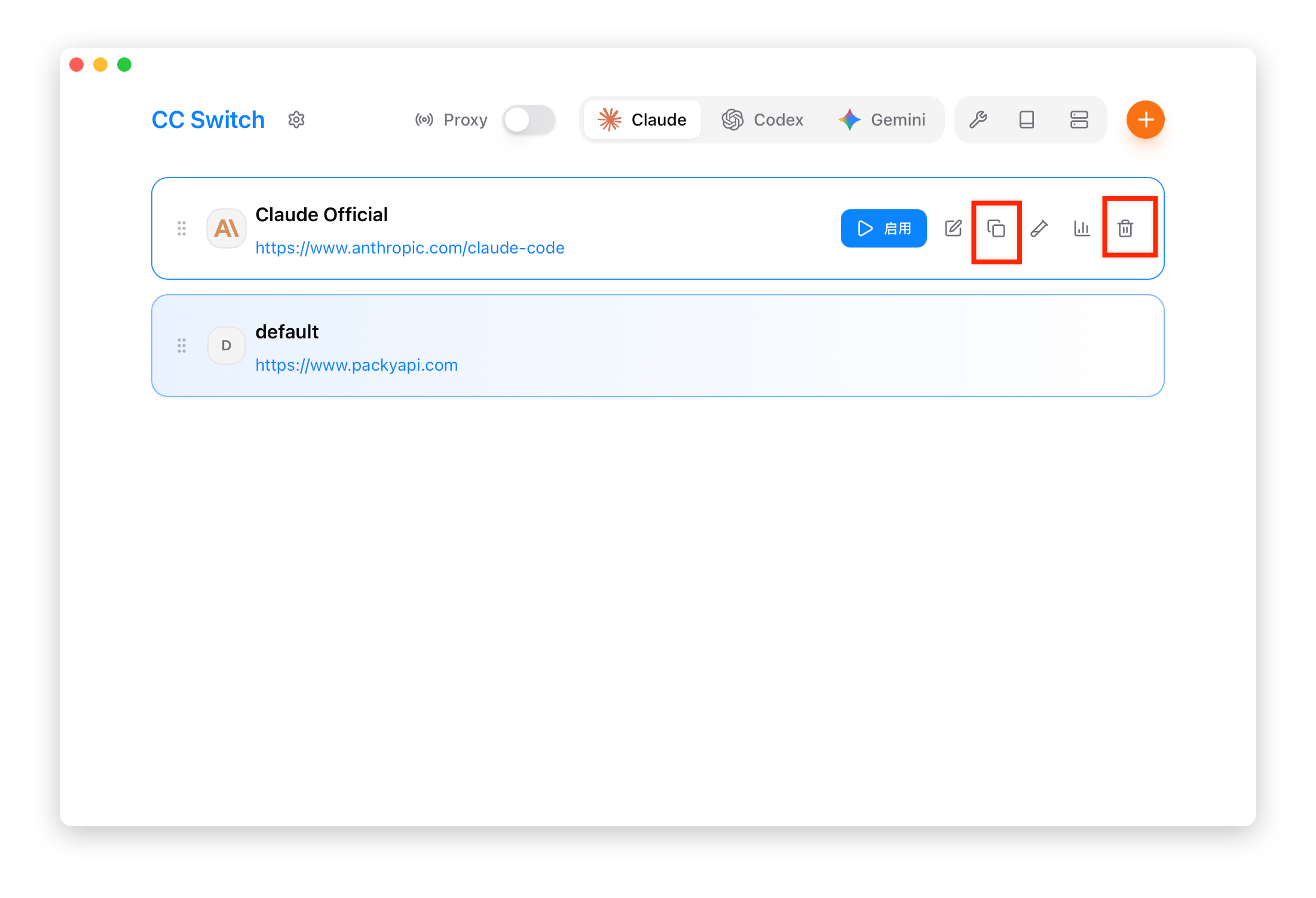
- Hover over the provider card to reveal action buttons
- Click the "Duplicate" button
- A copy is automatically created with a
copyname suffix - Edit the copy to modify the configuration
Duplicated Content
Duplication creates a complete copy, including:
| Content | Duplicated |
|---|---|
| Name | Yes (with copy suffix) |
| Configuration | Fully duplicated |
| Notes | Yes |
| Website Link | Yes |
| Icon | Yes |
| Endpoint List | Yes |
| Sort Position | Inserted below the original provider |
After Duplication
After duplication, you typically need to modify:
- Name: Change to a meaningful name
- API Key: If using a different account
- Endpoint: If using a different service
Delete Provider
Steps
- Hover over the provider card to reveal action buttons
- Click the "Delete" button
- Confirm deletion
Deletion Confirmation
A confirmation dialog appears before deletion, showing:
- Provider name
- Warning that deletion cannot be undone
Deletion Restrictions
- Currently active provider: Can be deleted, but it is recommended to switch to another provider first
- Universal provider: Deleting will also remove linked app configurations