Prompts Management
Overview
The Prompts feature manages system prompt presets. System prompts influence the AI's behavior and response style.
With Olenro, you can:
- Create multiple prompt presets
- Quickly switch prompts for different scenarios
- Sync prompt configurations across devices
Open the Prompts Panel
Click the Prompts button in the top navigation bar.
Panel Overview
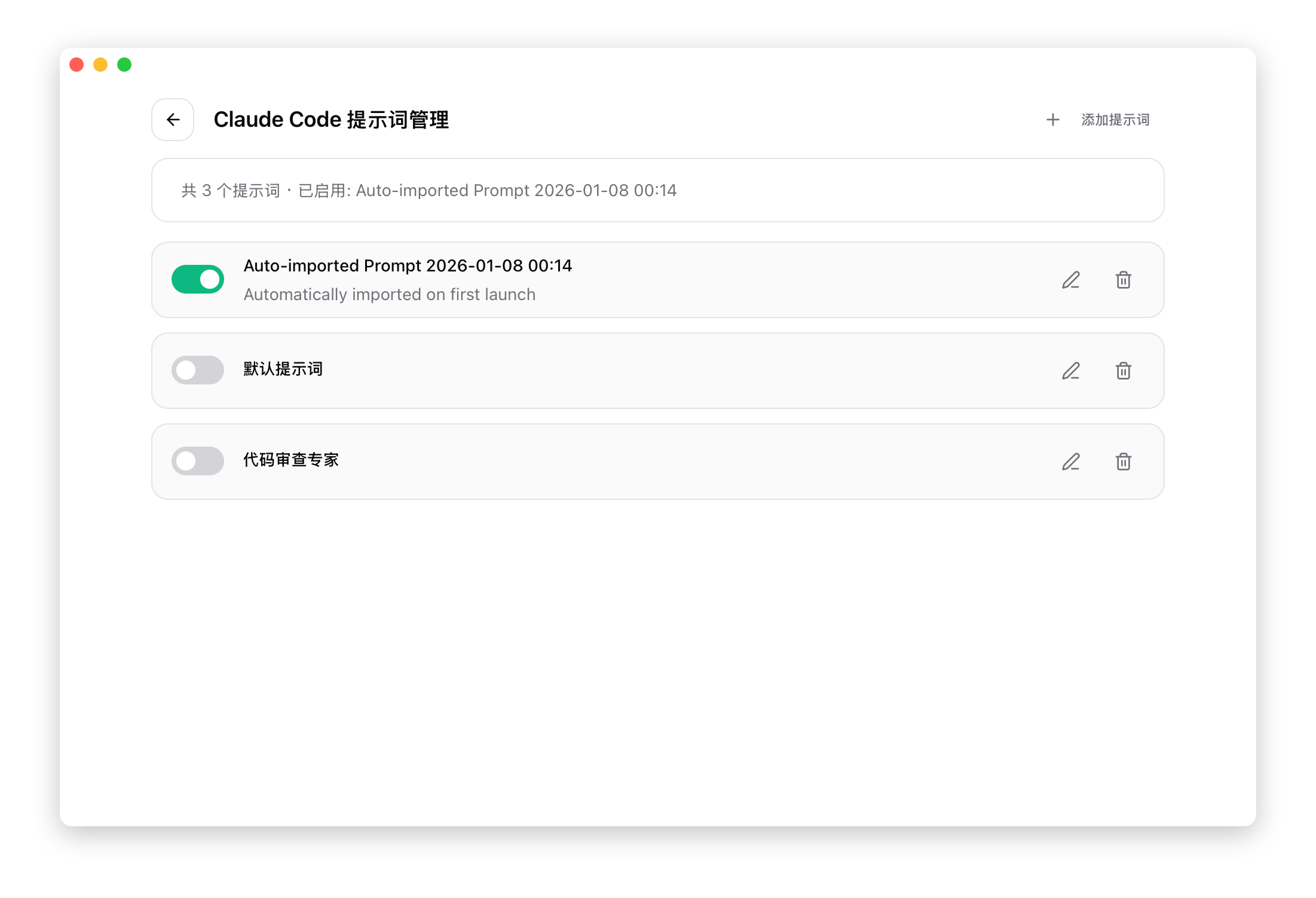
Create a Preset
Steps
- Click the + button in the top-right corner
- Enter a preset name
- Write the prompt in the Markdown editor
- Click "Save"
Markdown Editor
The editor provides:
- Syntax highlighting
- Live preview
- Common format shortcuts
Prompt Writing Tips
Structured format:
# Role Definition

You are a professional code review expert.

## Core Capabilities

- Code quality analysis
- Performance optimization suggestions
- Security vulnerability detection

## Response Style

- Clear and concise
- Provide specific examples
- Give improvement suggestions

## Notes

- Do not modify business logic
- Maintain consistent code style
Activate a Preset
How to Activate
Click the toggle switch on the preset item to change its activation status.
Single Activation
Only one preset can be active at a time. Activating a new preset automatically deactivates the previous one.
Sync Target
After activation, the prompt is written to the corresponding app's file:
| Application | File Path |
|---|---|
| Claude | ~/.claude/CLAUDE.md |
| Codex | ~/.codex/AGENTS.md |
| Gemini | ~/.gemini/GEMINI.md |
| OpenCode | ~/.opencode/AGENTS.md |
| OpenClaw | ~/.openclaw/AGENTS.md |
Edit a Preset
- Click the "Edit" button on the preset item
- Modify the name or content
- Click "Save"
If the currently active preset is edited, changes are immediately synced to the configuration file.
Delete a Preset
- Click the "Delete" button on the preset item
- Confirm deletion
Active presets cannot be deleted. Deactivate the preset first before deleting.
Smart Backfill
Olenro provides a smart backfill protection mechanism to ensure your manual modifications are not lost.
How It Works
- Before switching presets, automatically reads the current configuration file content
- Compares file content with the preset in the database
- If the content differs, it means the user has manually modified it
- Saves the manually modified content to the current preset
- Then switches to the new preset
Protection Scenarios
| Scenario | Handling |
|---|---|
Directly editing CLAUDE.md in CLI | Changes auto-saved to current preset |
| Modifying config file with external editor | Changes auto-saved to current preset |
| Switching to another preset | Current changes saved first, then switched |
Technical Details
The backfill mechanism triggers at these moments:
- When switching presets: Saves current live file content to the current preset
- When editing the current preset: Reads latest content from the live file
- On first launch: Automatically imports existing live file content
Notes
- Backfill only triggers when switching to a different preset
- If no preset is currently active, backfill is not triggered
- Backfill failure does not affect the switching process
Cross-app Usage
Prompts are managed separately per app:
- When switched to Claude, Claude's presets are shown
- When switched to Codex, Codex's presets are shown
- When switched to Gemini, Gemini's presets are shown
- When switched to OpenCode, OpenCode's presets are shown
- When switched to OpenClaw, OpenClaw's presets are shown
To use the same prompt across multiple apps, you need to create them separately.
Import & Export
Share via Deep Link
You can generate deep links to share presets:
olenro://import/prompt?data=<base64-encoded preset>Via Configuration Export
Exporting configuration includes all presets, which can be restored upon import.