Switch Provider
Switch from Main Interface
In the provider list, click the "Enable" button on the target provider card.
Switching Flow
- Click the "Enable" button
- Olenro updates the configuration file
- The card status changes to "Currently Active"
- Claude/Gemini take effect immediately, Codex requires a terminal restart
Status Indicators
| Status | Display | Description |
|---|---|---|
| Currently Active | Blue border + label | Current provider in the configuration file |
| Proxy Active | Green border | Provider actually in use during proxy mode |
| Normal | Default style | Inactive provider |
Quick Switch via System Tray
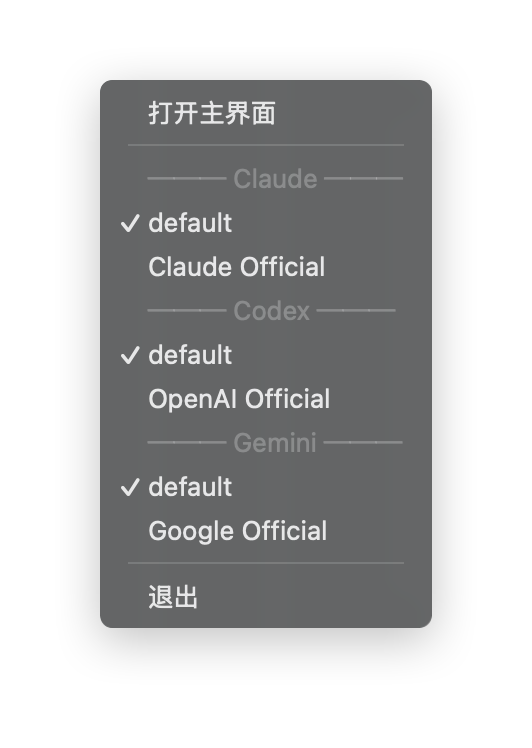
Quickly switch providers via the system tray without opening the main interface.
Steps
- Right-click the Olenro icon in the system tray
- Hover over the corresponding app submenu (e.g., "Claude · CurrentProvider")
- Click the provider name you want to switch to
- Switching completes with a brief tray notification
Tray Menu Structure
Starting from v3.13.0, the tray menu is refactored from a flat list into per-app submenus, with a dedicated submenu for each app:
| Submenu | Description |
|---|---|
| Claude | All Claude providers (including Codex OAuth reverse proxy) |
| Codex | All Codex providers |
| Gemini | All Gemini providers |
Benefits of the refactor:
- Prevents menu overflow: With many providers, a flat list would exceed screen height; per-app submenus scale naturally
- Submenu title shows the currently active provider and usage summary: You know at a glance which provider Claude / Codex / Gemini is using, plus available cached usage information, without opening the submenu
- Per-app isolation: Switching Claude's provider doesn't disturb the Codex or Gemini view
Tip: The combination of background residency + Lightweight Mode + per-app submenus is especially suited for heavy users who frequently switch among multiple apps. See 1.5 Personalization → Lightweight Mode.
Activation Methods
Claude Code
Takes effect immediately after switching, no restart needed.
Claude Code supports hot reload and automatically detects configuration file changes and reloads.
Codex
Requires restart after switching:
- Close the current terminal window
- Reopen the terminal
Gemini CLI
Takes effect immediately after switching, no restart needed.
Gemini CLI re-reads the .env file on each request.
Configuration File Changes
When switching providers, Olenro modifies the following files:
Claude
~/.claude/settings.jsonModified content:
{
  "env": {
    "ANTHROPIC_API_KEY": "new API Key",
    "ANTHROPIC_BASE_URL": "new endpoint"
  }
}
Codex
~/.codex/auth.json
~/.codex/config.toml (if additional configuration exists)
Gemini
~/.gemini/.env
~/.gemini/settings.json
Handling Switch Failures
If switching fails, possible reasons:
Configuration File Is Locked
Another program is using the configuration file.
Solution: Close the running CLI tool and try switching again.
Insufficient Permissions
No write permission to the configuration file.
Solution: Check the permission settings of the configuration directory.
Invalid Configuration Format
The provider's JSON configuration has format errors.
Solution: Edit the provider, check and fix the JSON format.